Use this guide to add Microsoft Authenticator, review or change an available default verification method, and manage passkeys or old devices. The options displayed may depend on your device and APSU account configuration.
Recommended: Microsoft Authenticator or a supported passkey. SMS verification is being phased out at APSU. Never approve an authentication request you did not initiate.
1. Open your Security info settings
1. On a computer, visit https://myaccount.microsoft.com and sign in with your complete APSU email address and password. Complete any existing MFA prompt.
2. Under Manage access and security, select Change how you sign in.
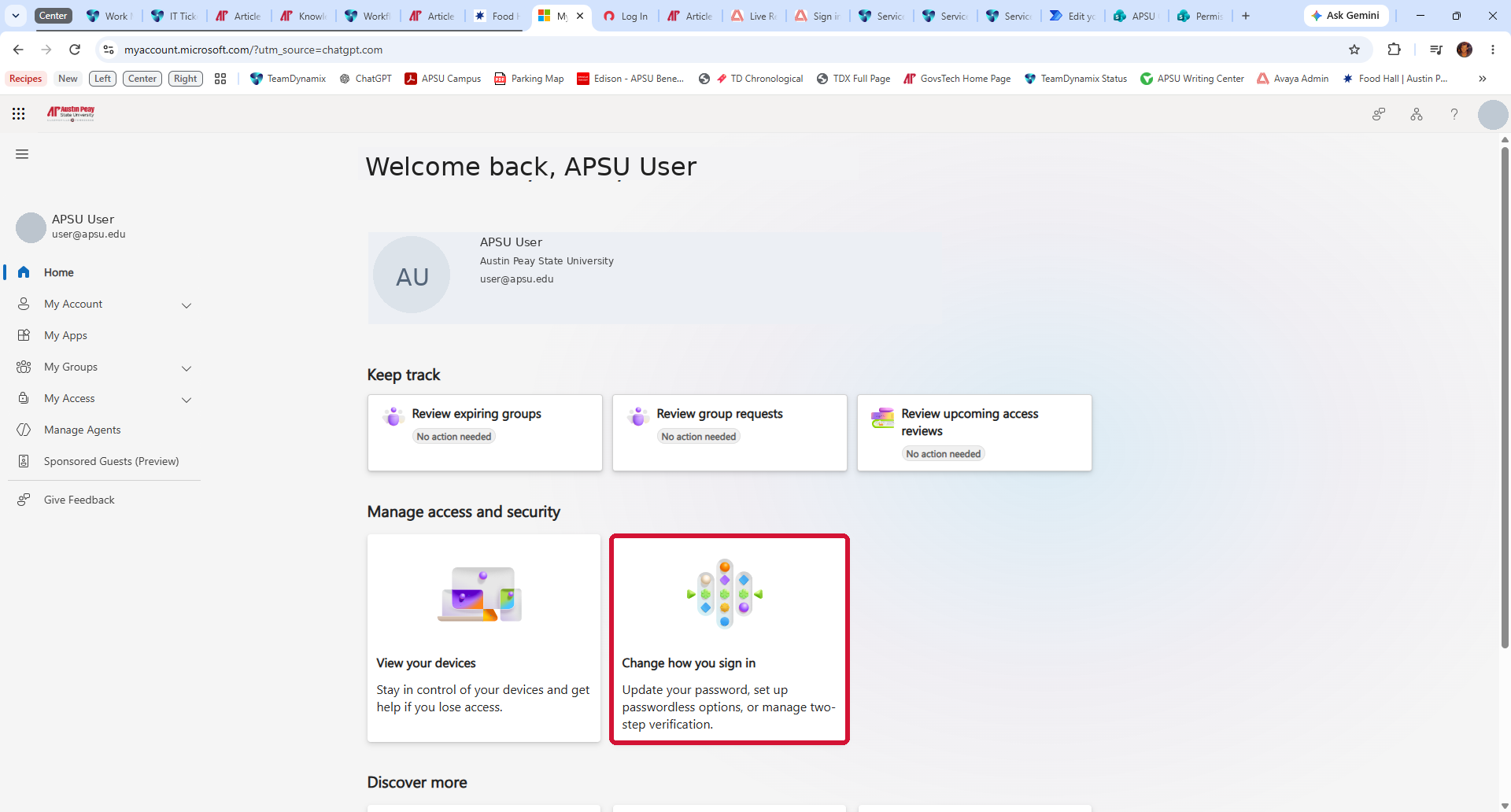
3. On the Security info page, review your registered methods. To register an additional method, select + Add sign-in method.

2. Add Microsoft Authenticator
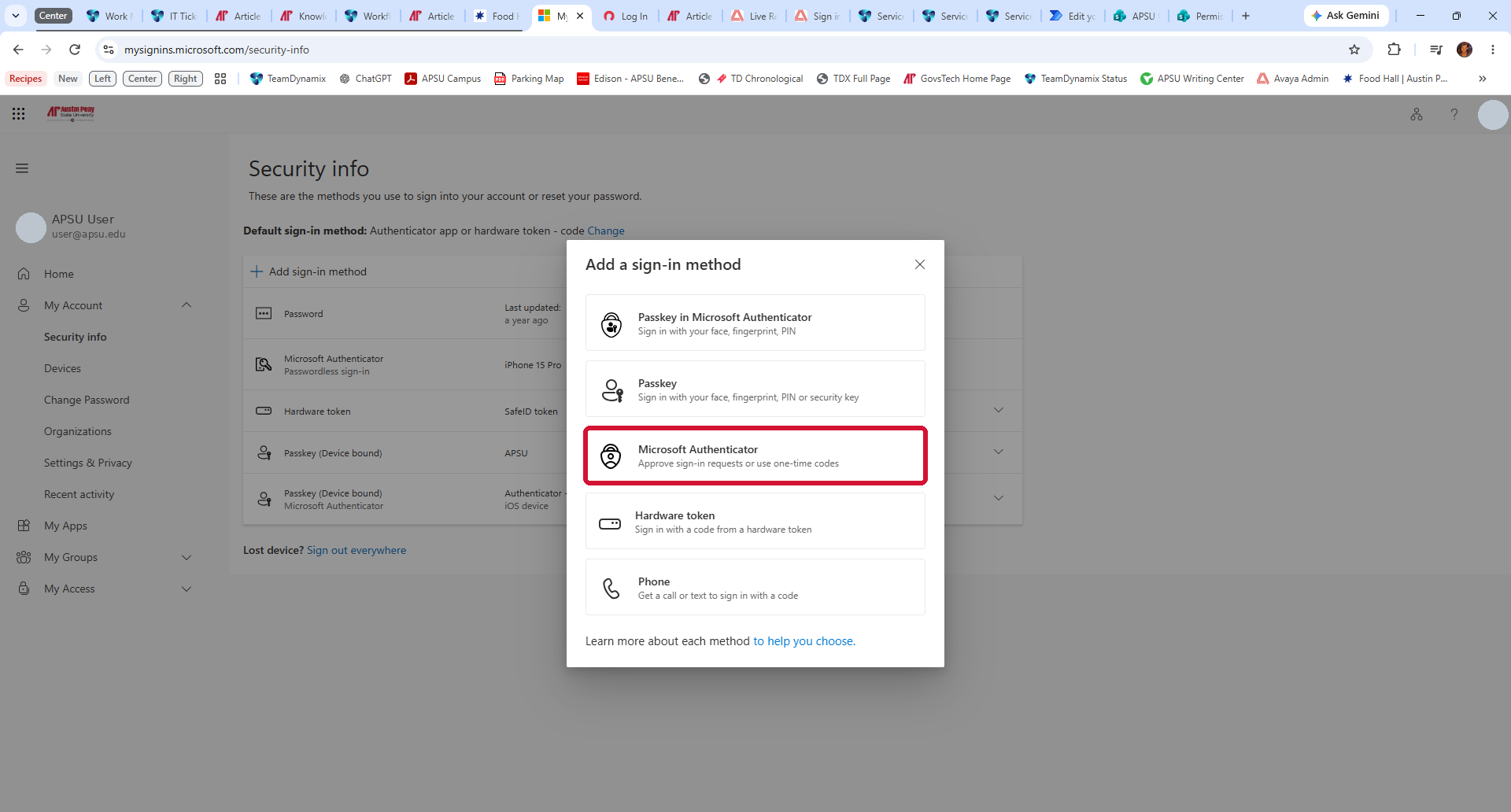
1. Select Microsoft Authenticator from the Add a sign-in method window. Do not confuse this with Passkey in Microsoft Authenticator, which is a different setup.
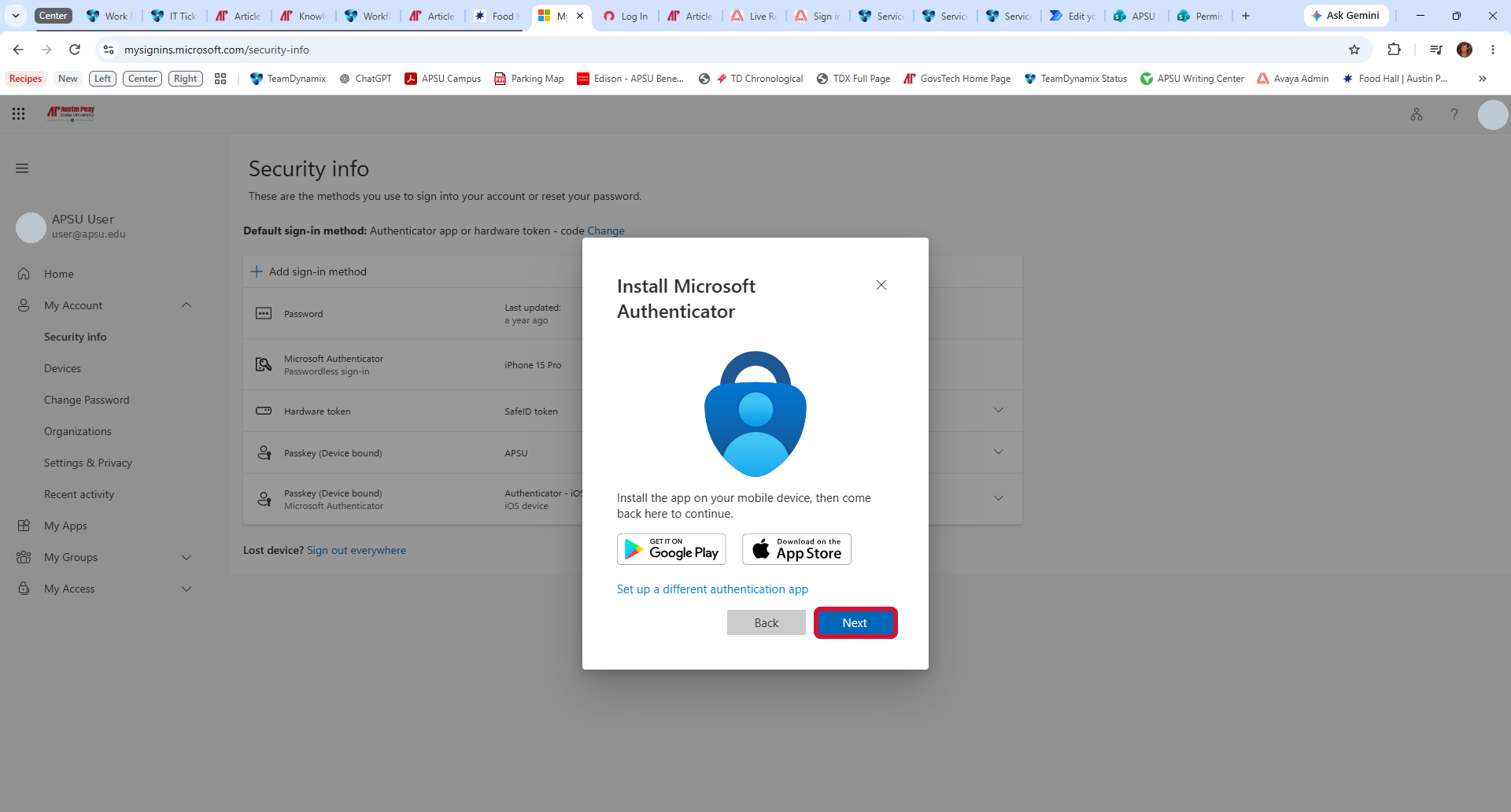
2. Install Microsoft Authenticator from the Apple App Store or Google Play Store. Return to the computer and select Next.
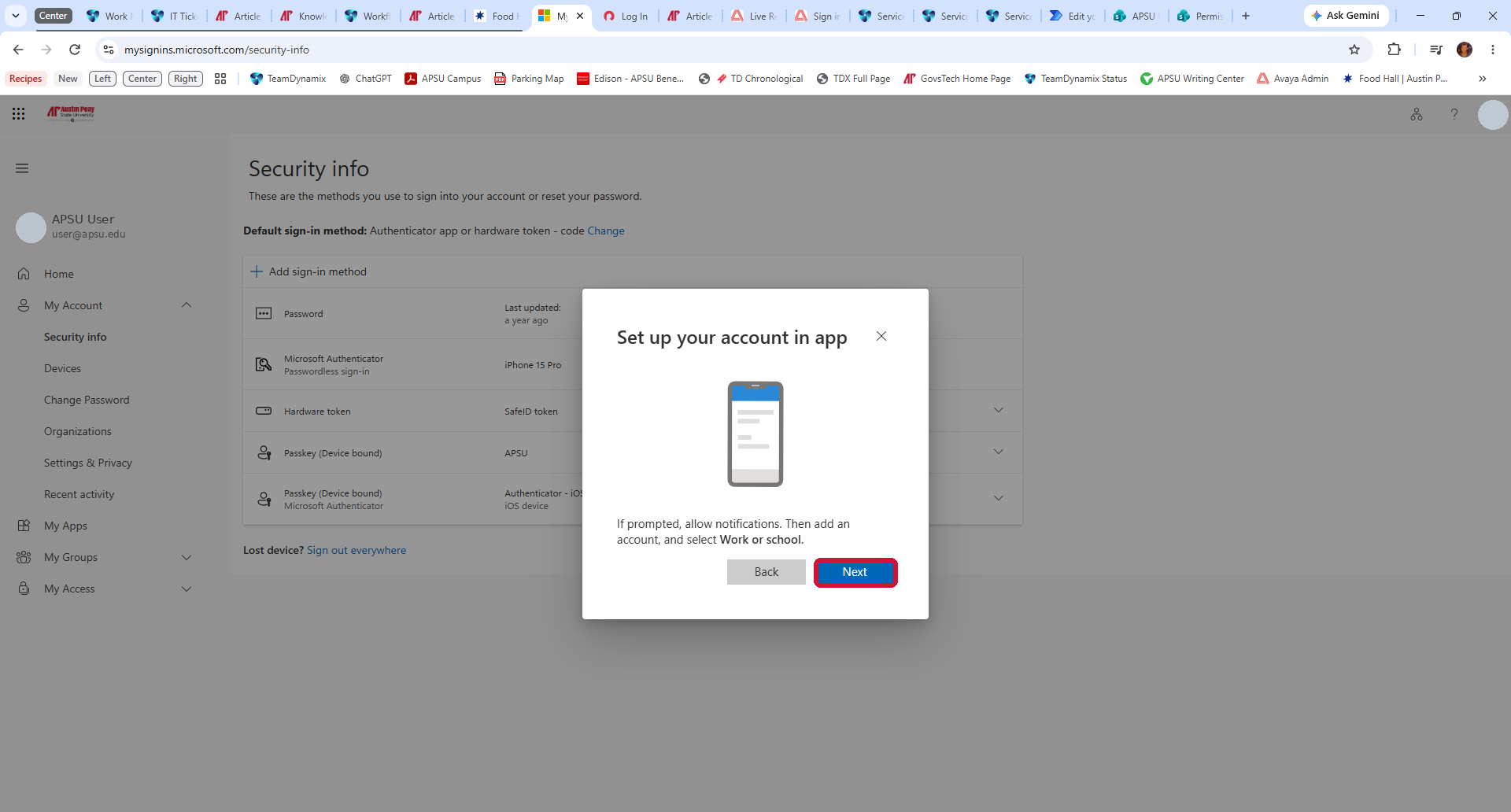
3. On your phone, open Microsoft Authenticator. Allow notifications if prompted. Select +, then Work or school account. Return to the computer and select Next.
4. On the phone, select Scan QR code and scan the unique code shown on your own computer. The screenshot below intentionally displays a non-scannable example, not a live enrollment code. Then select Next.
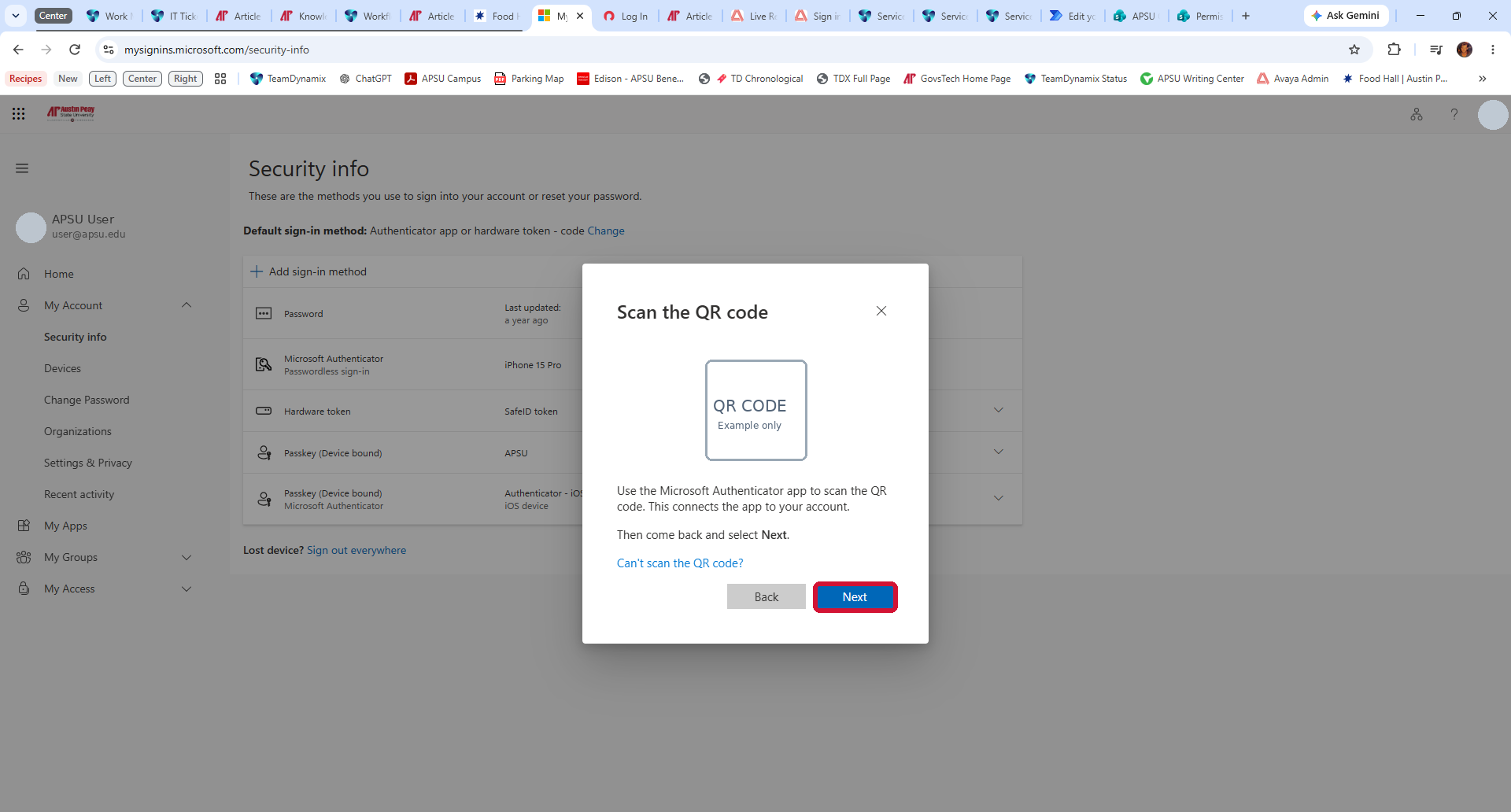
5. Finish the verification request using Microsoft Authenticator, following the instructions on the screen. Ensure the new method appears under Security info before relying on it. The final approval and completion screens were not captured in APSU; do not assume registration is complete until Microsoft confirms it.
3. Change the default sign-in method
1. From Security info, select Change beside Default sign-in method at the top of the page.
2. Open the dropdown list to view your available methods.
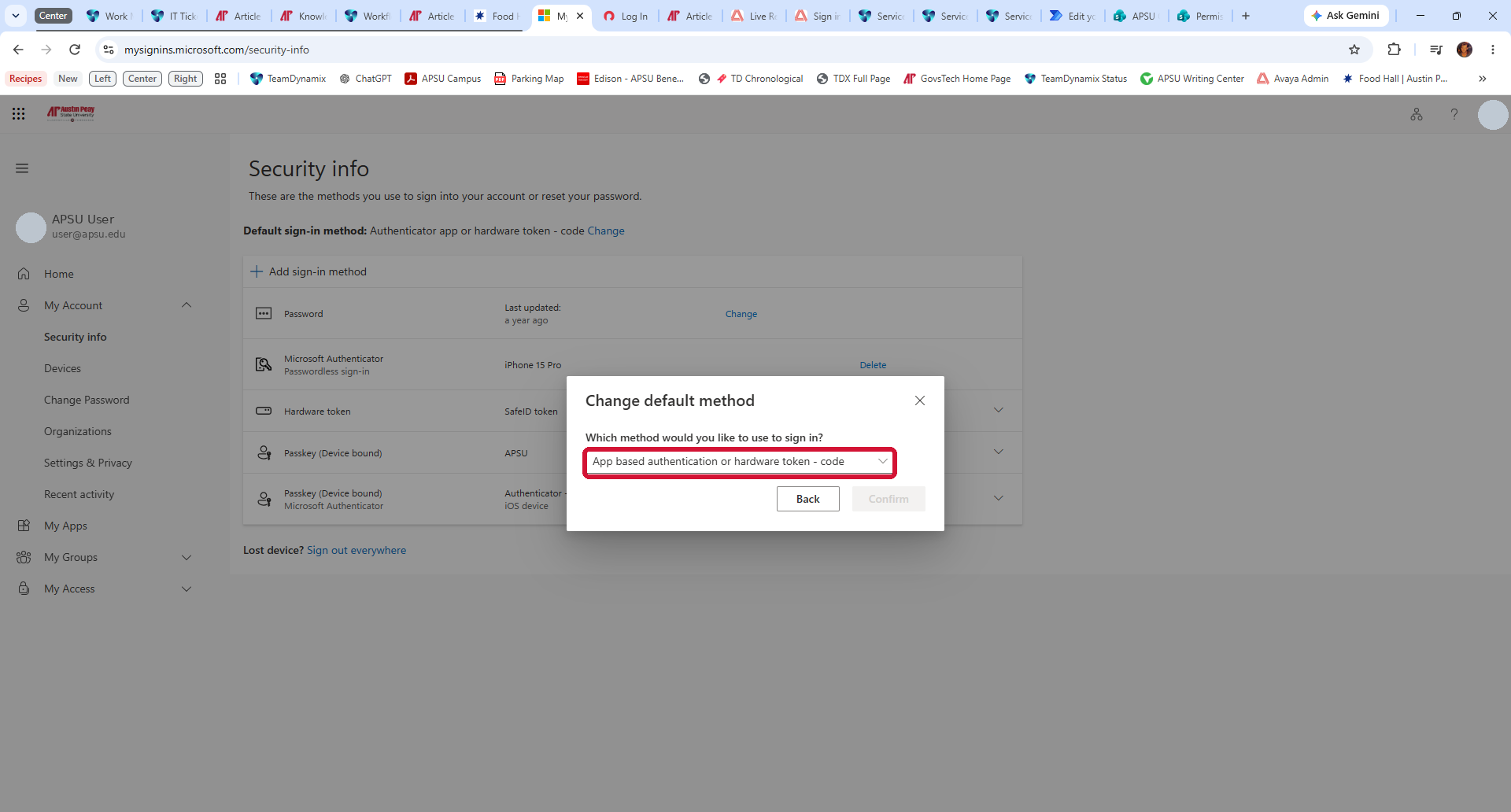
3. If available, choose App based authentication – notification to receive a push approval in Microsoft Authenticator; or App based authentication or hardware token – code to enter a generated code. The exact options depend on what is registered and enabled for your account. Select Confirm to save your selection.

4. Replace a phone or remove an old authentication method
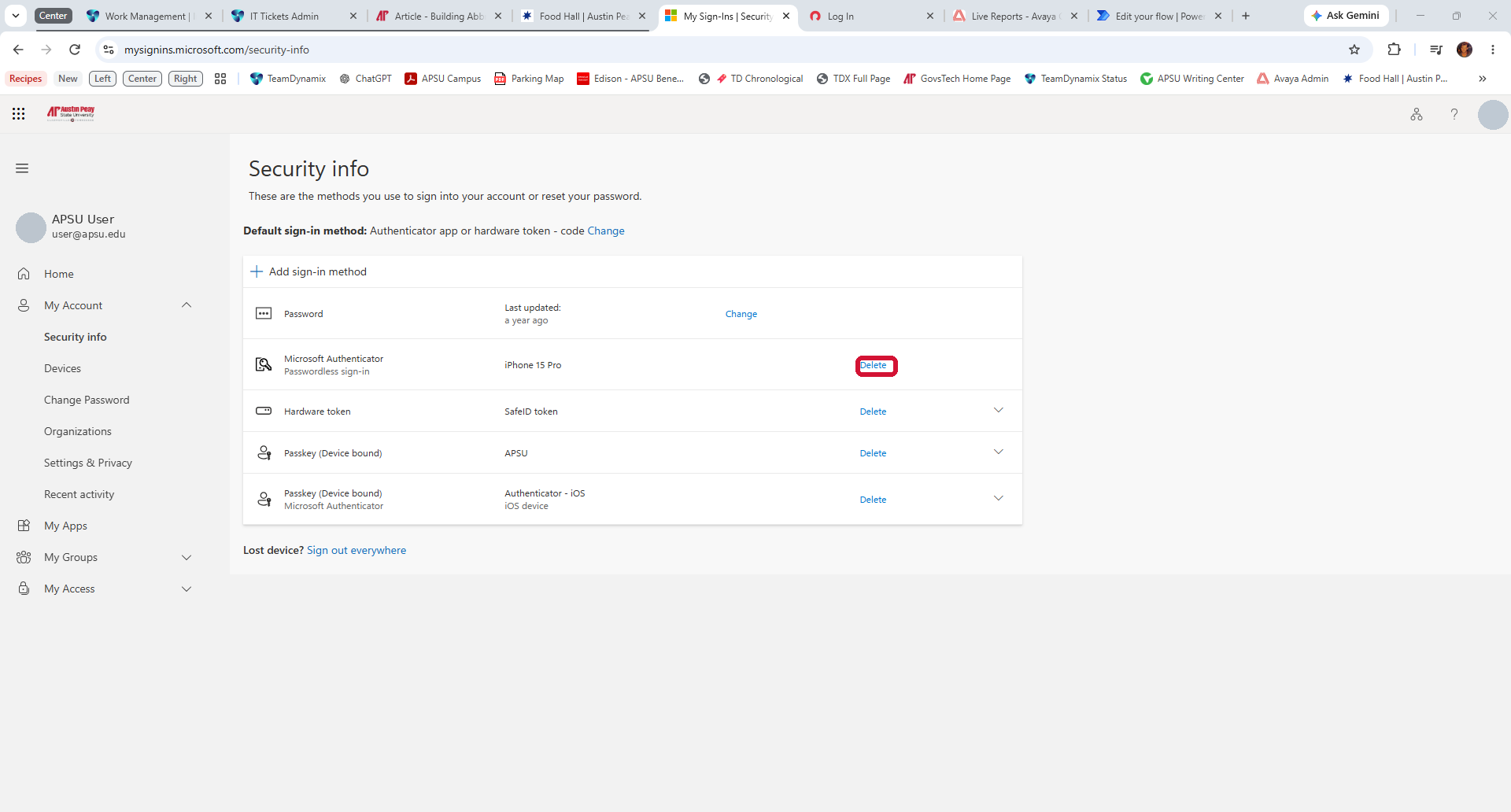
Before removing an old device, add and successfully test your replacement device. If you no longer have access to any verification method, contact the APSU IT Service Desk for assistance. Identity verification is required for MFA resets.
Under Security info, locate the entry for the old device and select Delete for that specific entry. Check the device name carefully; other rows may also have Delete links. Confirm removal only when the replacement works.
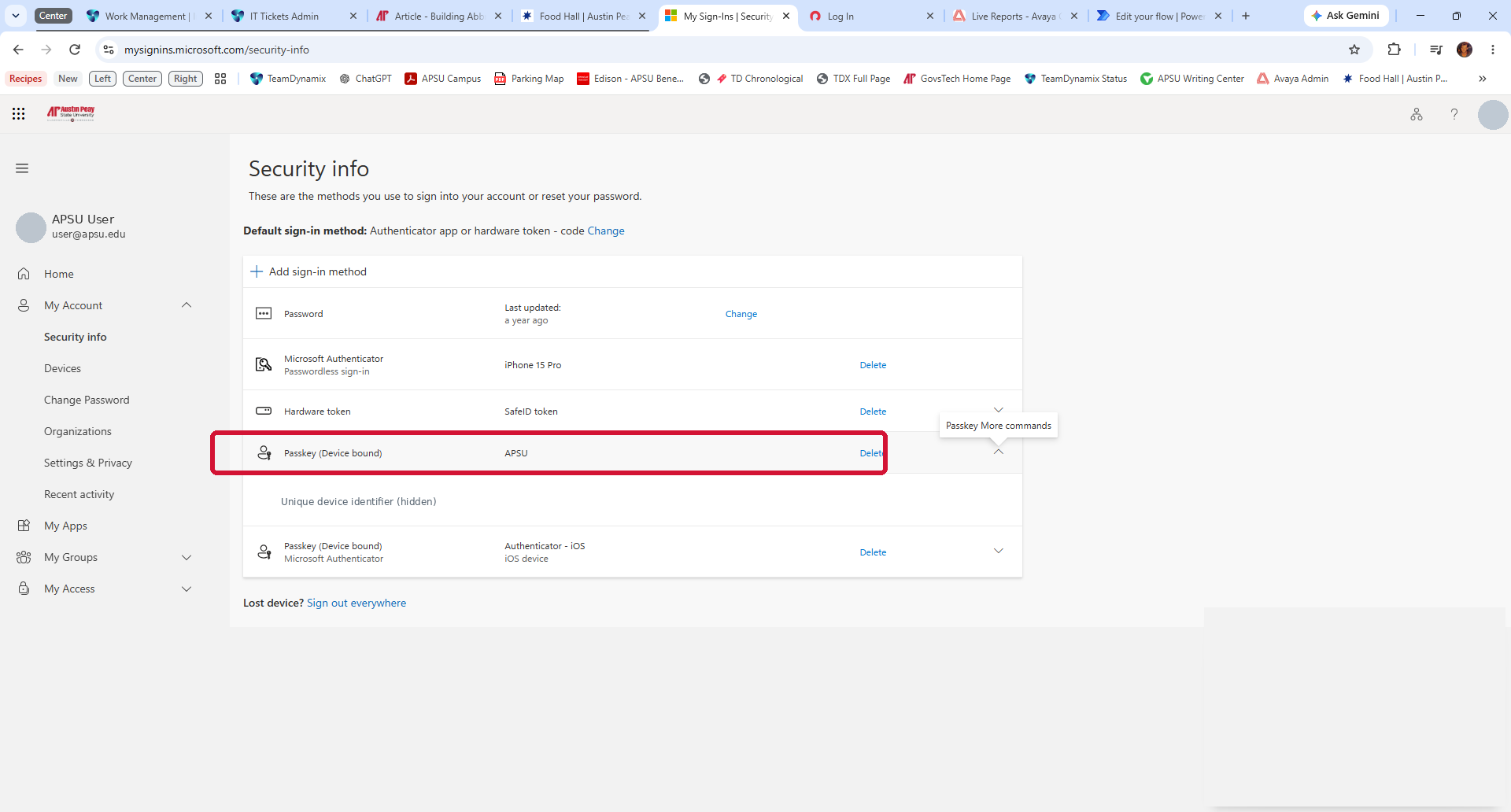
5. View or remove an existing passkey
On Security info, locate a Passkey (Device bound) entry and select the chevron at the far right to show its details. AAGUID is an identifier for the authenticator type, not a sign-in code. Use Delete only if you intend to remove that passkey and another sign-in method works.
6. Begin setting up a passkey
1. Select + Add sign-in method. The choices include Passkey in Microsoft Authenticator and Passkey. These are separate options and their available storage destinations depend on device, browser, and organizational settings.
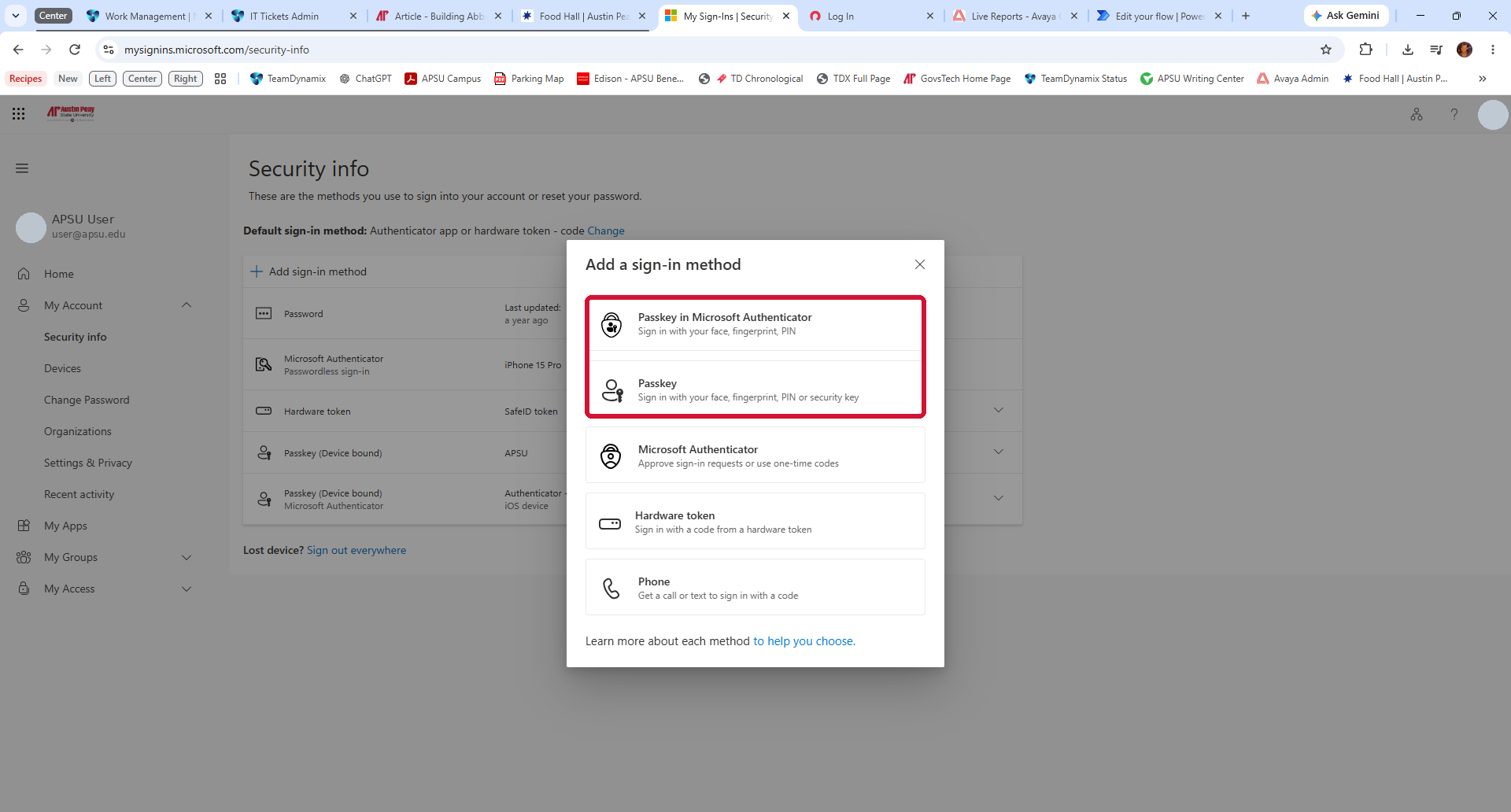
2. For Passkey in Microsoft Authenticator, follow the on-screen prompt to continue.
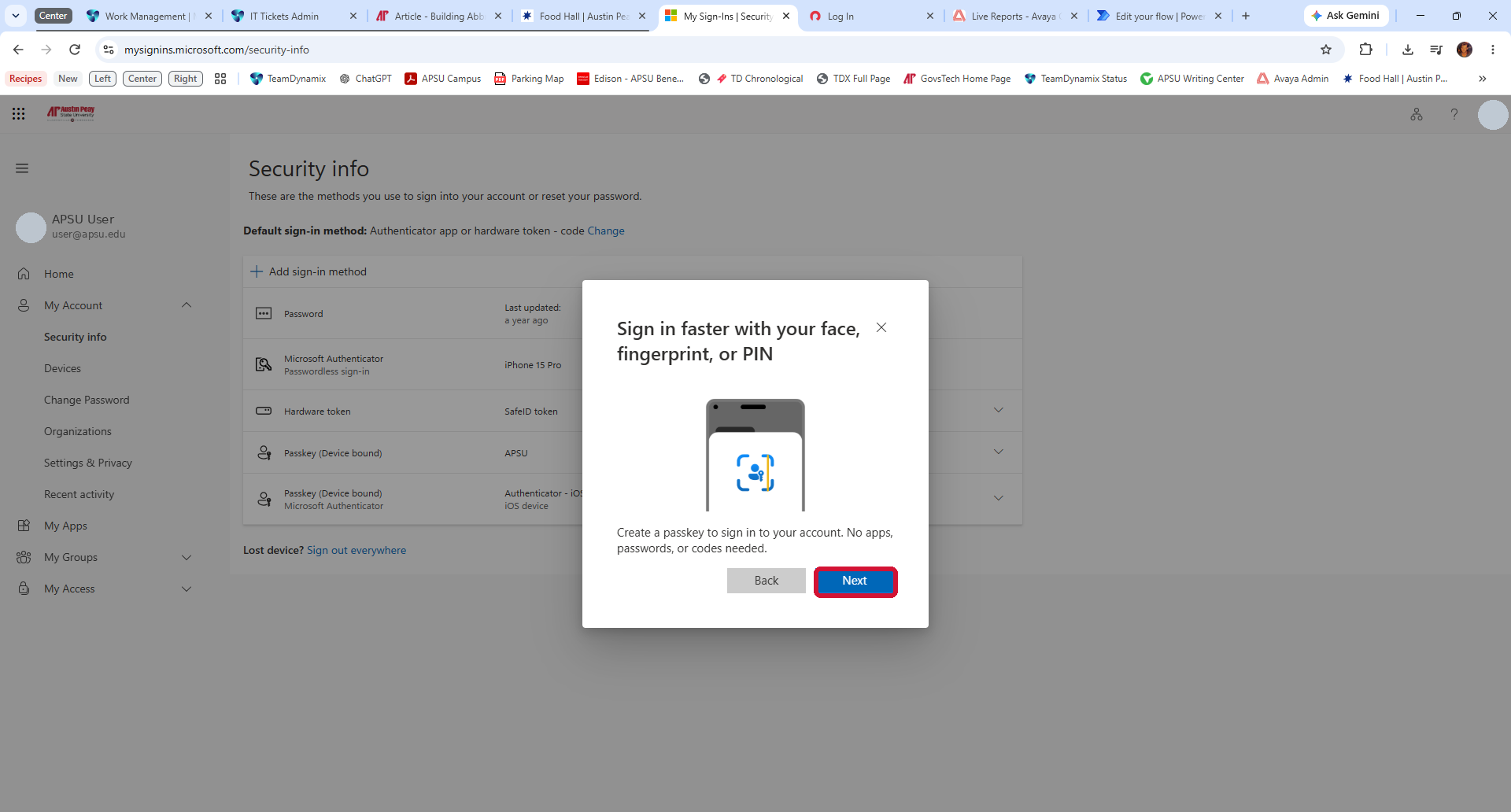
3. Continue only if you intend to register a new passkey. Windows or your browser may prompt to use a USB security key or another storage option. Choose a storage destination supported by your device and APSU policy; do not use a USB-key prompt as evidence that a phone-based passkey was created. Complete device verification and confirm the passkey appears under Security info.
7. If you cannot sign in
If available, select Sign in another way at the MFA prompt and use another previously registered method. If you lost access to all methods, contact the APSU IT Service Desk for help with an identity-verified reset. Never disclose verification codes, passwords, or passkey secrets.