Multi-Factor Authentication (MFA) helps protect your Austin Peay State University (APSU) account by asking you to verify that you are the person signing in. This guide explains how to register Microsoft Authenticator, test your sign-in, and get help if you cannot finish setup.
Before You Begin
- Use a computer or laptop if possible, and keep your smartphone nearby. Both devices need internet access.
- Have your full APSU email address and password. If this is your first sign-in, have your APSU Welcome email and temporary password.
- Install or update Microsoft Authenticator on your smartphone.
Download Microsoft Authenticator:
Important for students: Register MFA yourself using a device you personally own, keep with you, and can access when signing in. Parents, guardians, and other family members should not register MFA on your behalf. If you cannot use a smartphone, see the hardware-token guidance under Troubleshooting.
For first-time student setup, also see Set Up Your APSU Student Account.
About the screenshots: These are reference images from APSU and Microsoft documentation. Account names, numbers, and screen layouts may differ from yours. Use the information displayed on your own devices.
Step 1: Open a Private Browser Window
- Open Microsoft Edge or Google Chrome on your computer.
- Select the three dots (...) in the upper-right corner.
- In Edge, select New InPrivate window. In Chrome, select New Incognito window.
- Complete the remaining setup steps in that private window.
A private window helps prevent saved Microsoft or APSU accounts from interfering with setup.
Step 2: Sign In to Your APSU Account
- In the private window, open APSU Outlook.
- Enter your full APSU email address and select Next.
- Students: username@students.apsu.edu
- Employees: username@apsu.edu
- Enter your APSU password and select Sign in.

Example APSU sign-in screen. Enter your complete APSU email address.
First-time sign-in: If asked to change a temporary password, create a new password with at least 16 characters. A multi-word passphrase can be easier to remember. Do not reuse a password from another service.
Student account setup: For additional guidance on activating your APSU student account, see Set Up Your APSU Student Account.
Step 3: Begin Microsoft Authenticator Setup
After signing in, you may see More information required or Let's keep your account secure.
- On the Let's keep your account secure screen, select Next.

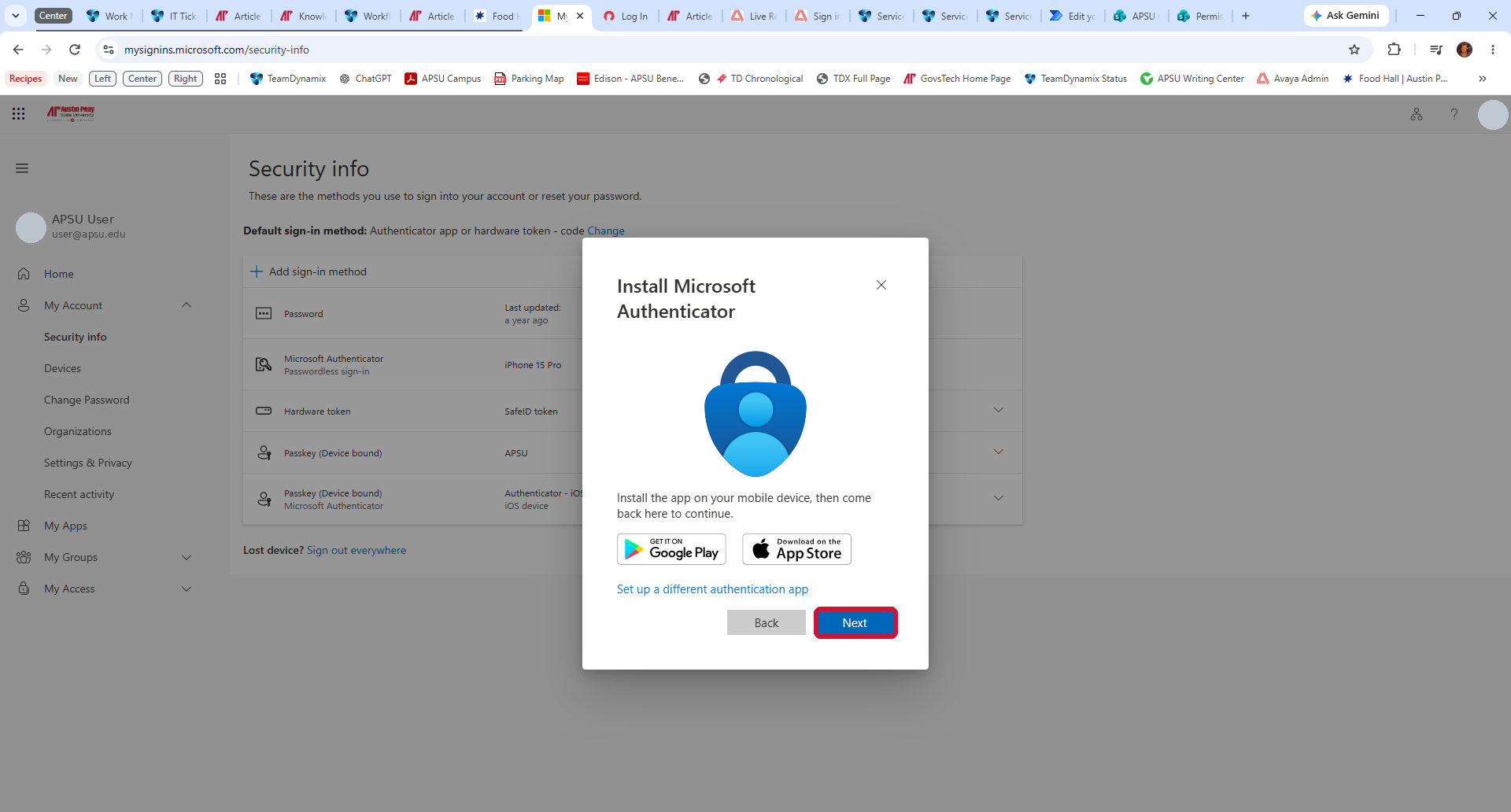
- On the Install Microsoft Authenticator screen, install Microsoft Authenticator from the App Store or Google Play if you have not already done so. Return to your computer and select Next.
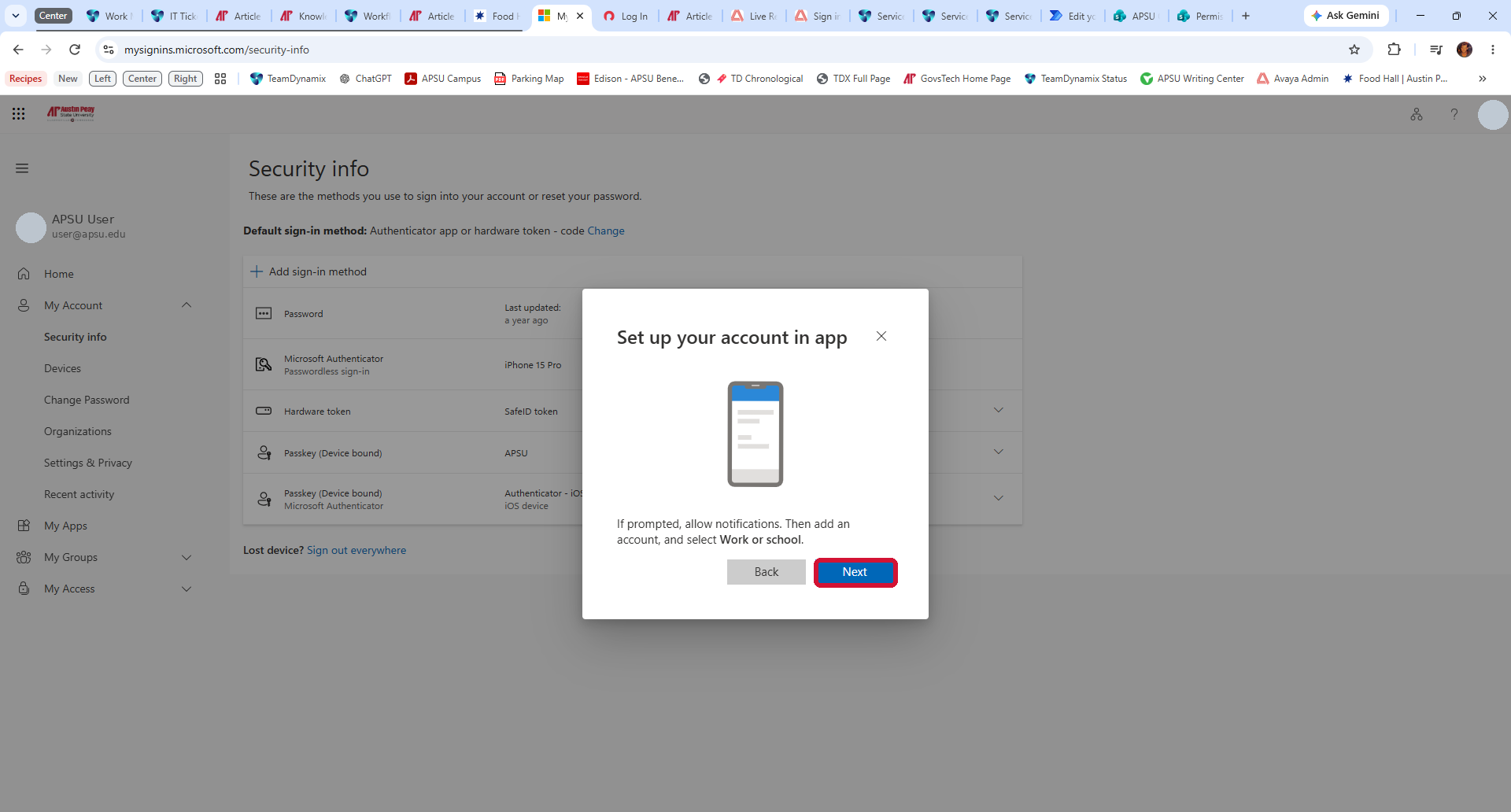
- On the Set up your account in app screen, open Microsoft Authenticator on your phone. Allow notifications if prompted. Tap + or Add account, and choose Work or school account. On your computer, select Next to display the QR code.
If the expected setup prompt does not appear, or you cannot continue registration: Contact the GOVSTECH Help Desk using the information at the end of this article.
Step 4: Add Your APSU Account on Your Phone
- Open Microsoft Authenticator on your smartphone.
- Allow notifications if prompted.
- Select Add account or the plus (+) symbol.
- Select Work or school account.
- Select Scan QR code. Allow the app to use your camera if asked.
- Use the scanner inside Microsoft Authenticator to scan the QR code on your computer.
- Confirm that your APSU account appears in the app.
- Return to your computer and select Next.

Example QR registration screen. Scan only the code displayed during your own account setup.
Do not scan the QR code in this article. Your account setup creates its own code. Do not share that code or the manual setup information with anyone.
Use the Authenticator scanner for this step, rather than your phone's regular camera app. The app's buttons may look different on iPhone and Android.
Step 5: Complete the Verification Test
- Look at your computer for the number displayed by Microsoft.
- Open the Microsoft Authenticator notification on your phone.
- Enter the number from your computer into the app, then select Yes or the approval button shown. Unlock your phone if prompted.
- Return to the computer and wait for confirmation that the notification was approved.
- Select Next or Done, as shown.
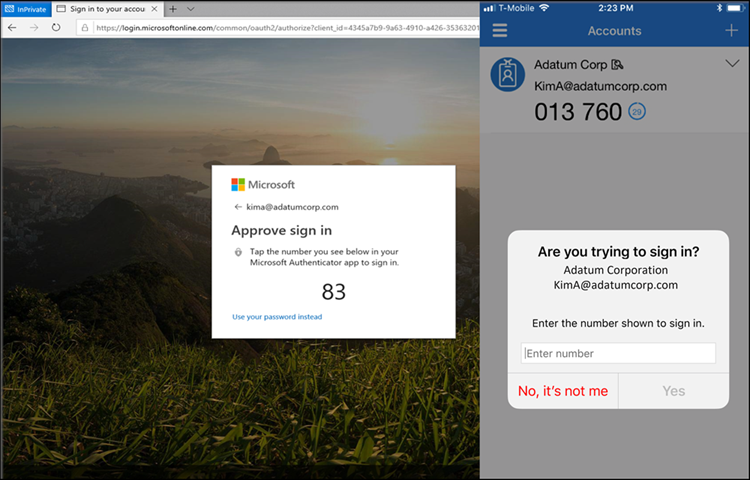
Microsoft example of number matching. Enter your own displayed number. Source: Microsoft number-matching documentation.
If registration continues: Finish any additional APSU-required prompt. If offered an approved passkey, use the passkey section of this article. If only phone verification is offered, or you cannot use the method requested, contact the Help Desk so they can help you finish registration.
Security reminder: Approve only a request you initiated. Deny an unexpected request and contact GOVSTECH.
Step 6: Confirm Your Account Is Working
- Open APSU Outlook and confirm that your mailbox opens.
- If asked to sign in, use your full APSU email address and complete verification.
- Students should also open OneStop and verify access. Follow its sign-in screen and complete verification if prompted.
Setup is complete when required registration prompts are finished and you can access your account.
Register Authenticator on a New Phone
If you are replacing your phone or need to modify an existing MFA method, see Modifying Your Multi-Factor Authentication (MFA) Settings (KB 89937). Register and test your new method before removing the old one. If you cannot sign in with any registered method, contact the GOVSTECH Help Desk. Identity verification is required for MFA resets.
What About Passkeys?
A passkey lets you sign in using a supported device and its face recognition, fingerprint, or PIN. Authenticator notification registration does not automatically mean that you registered a passkey.

Microsoft example of the separate Passkey in Microsoft Authenticator option. Available methods depend on your APSU account settings.
If APSU prompts you to create a passkey, follow the onscreen instructions and Microsoft's device-specific passkey registration guide.
You can also check Microsoft Security Info for Passkey in Microsoft Authenticator if that method is available for your account.
Text and telephone verification: If you currently rely on these methods, you must move to an APSU-supported replacement. Microsoft is retiring its SMS and voice delivery for most users on February 1, 2027. See Microsoft's retirement guidance or contact GOVSTECH for help.
Troubleshooting
I am not receiving an Authenticator notification.
- Confirm your phone has Wi-Fi or mobile data.
- Open Microsoft Authenticator directly and check for a pending request.
- Open your phone's Settings and make sure notifications are allowed for Microsoft Authenticator.
- Retry the sign-in. If the request expired, use the number from the new request.
My QR code will not scan.
- Confirm you selected Work or school account and are using the scanner inside Microsoft Authenticator.
- Make sure the entire QR code is visible to the phone's camera.
- If available, select Can't scan the QR code? or the equivalent link on the computer and use the manual setup instructions.
Keep the QR code and manual setup information private.
The wrong Microsoft account appears.
- Close all InPrivate or Incognito windows.
- Open a new private window, return to APSU Outlook, and enter your full APSU email address.
- If a private window works but the regular browser does not, return to the regular browser. In Edge or Chrome, press Ctrl + Shift + Delete on Windows or Command + Shift + Delete on Mac.
- Set the time range to All time.
- Select Cookies and other site data and Cached images and files. Leave passwords and other items unchecked.
- Select Clear now or Clear data, restart the browser, and try again.
Clearing cookies signs you out of websites. See also APSU's cache-clearing guide.
I lost my phone or cannot finish MFA.
If you have another working verification method, use Microsoft Security Info to register a replacement. Otherwise, contact GOVSTECH. Identity verification is required before an MFA reset.
I do not have a compatible smartphone.
Contact GOVSTECH to discuss the options available for your account.
Dual Enrollment students who received a SafeID token should use First-Time Setup for Your SafeID Hardware Token. If the token is lost, damaged, or was not received, contact your school's Dual Enrollment liaison.
Need Help?
APSU GOVSTECH Help Desk
Phone: 931-221-4357
Email: govstech@apsu.edu
Tell us which step is causing trouble and provide the exact error message or a screenshot. Do not include passwords, QR codes, manual setup information, or authentication codes.