First-Time Setup Guide
IMPORTANT MULTIFACTOR AUTHENTICATION (MFA) NOTICE
Students must set up MFA themselves using a phone they personally own, keep with them, and can access whenever they sign in. Parents, guardians, and other family members SHOULD NOT set up MFA on a student’s behalf.
USE YOUR FULL APSU STUDENT EMAIL ADDRESS
Use your full APSU student email address throughout this guide: username@students.apsu.edu.
Before You Begin
- Use a computer if possible and keep your smartphone nearby.
- Have the APSU Welcome email containing your temporary password.
- Know your full APSU student email address.
- Install Microsoft Authenticator from the Apple App Store or Google Play Store.
USE YOUR FULL EMAIL ADDRESS
Whenever you are asked for your APSU sign-in, enter your complete student email address, including @students.apsu.edu.
Step 1: Open a Private Browser Window
Open an InPrivate window in Microsoft Edge or an Incognito window in Google Chrome. Complete every remaining step in this private window.
Tip: A private window helps prevent another Microsoft or APSU account from interfering with setup.
Step 2: Begin Your First Sign-In
You may start at either OneStop or Outlook.

Open Outlook | Open OneStop
Step 3: Enter Your APSU Student Email
Enter your full APSU student email address, including @students.apsu.edu, and select Next.

Step 4: Use Your Temporary Password
Enter the temporary password from your APSU Welcome email, then select Sign in.
Step 5: Create Your New APSU Password
Replace the temporary password with a new password that is at least 16 characters long, enter it again, and submit the change.
Tip: A multi-word passphrase is easier to remember. Do not reuse a password from another service.

Step 6: Start Microsoft Authenticator Setup
When you see More information required or Let’s keep your account secure, select Next.

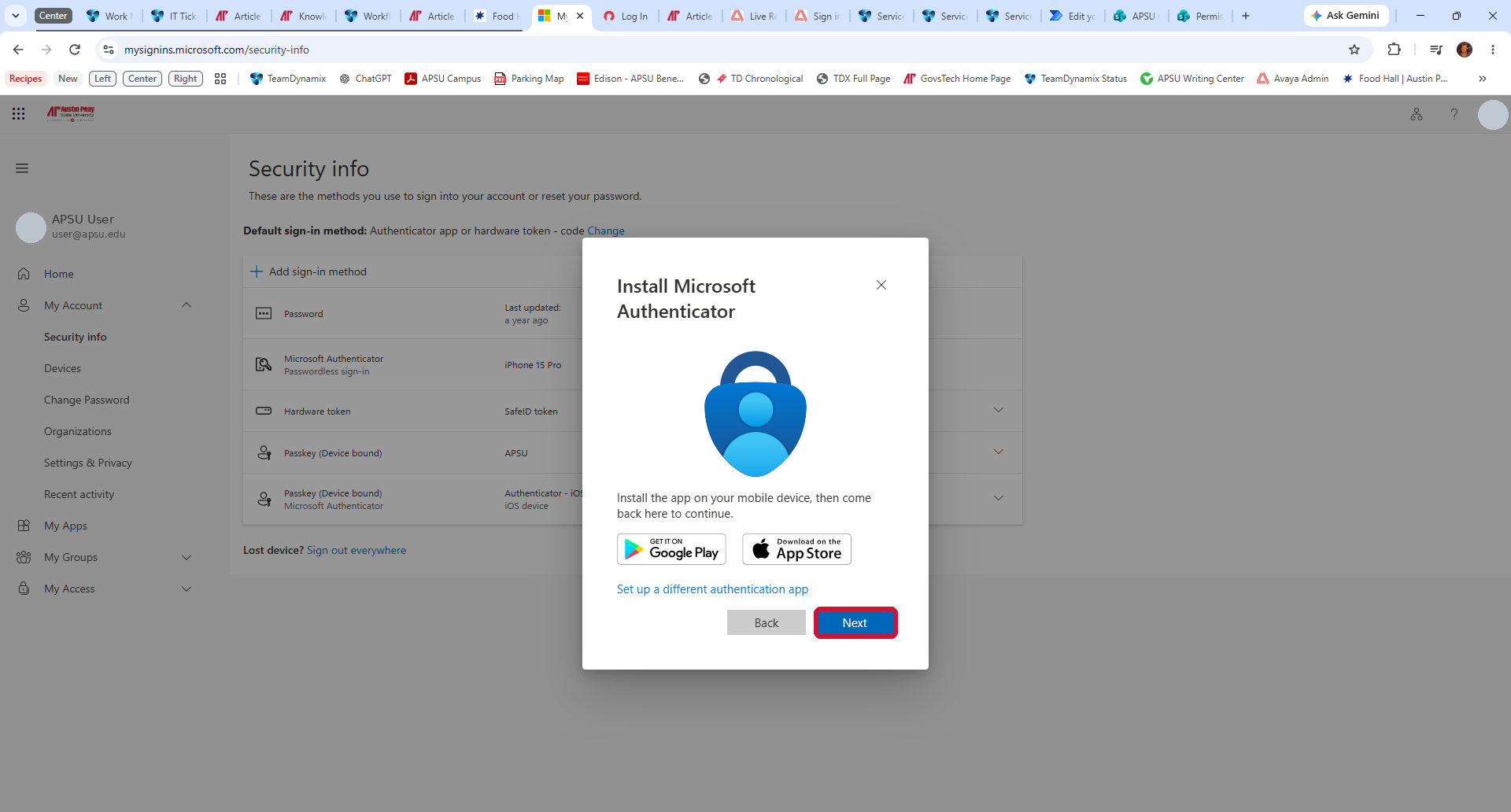
Install Microsoft Authenticator: On the next screen, install Microsoft Authenticator on your smartphone if you have not already done so. Then select Next on the computer.
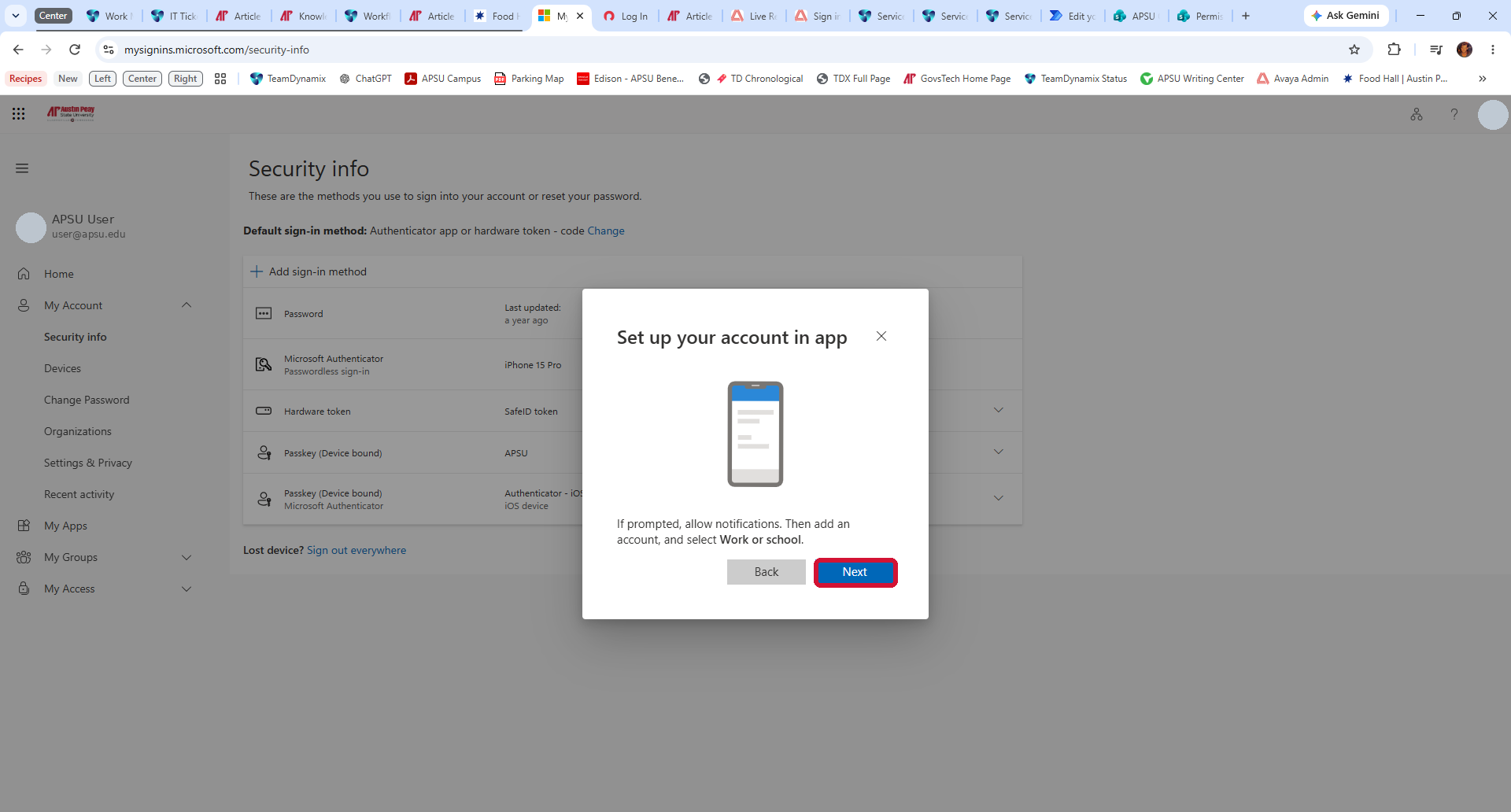
Set up your account in app: Open Microsoft Authenticator on your phone and allow notifications if prompted. Select + or Add account, then Work or school account. Return to your computer and select Next to show the QR code.
Step 7: Scan the QR Code
On your phone, in Microsoft Authenticator, select Scan QR code and scan the unique code displayed on your computer.
If you have not installed Microsoft Authenticator yet, install it before continuing.


Important: Scan only the QR code shown during your own sign-in. Do not scan an image from this article or share your enrollment code.
Step 8: Approve the Test Request
Return to the computer and select Next. If a number appears, enter that number in Microsoft Authenticator and approve the request.

SECURITY REMINDER
Never approve an Authenticator request you did not initiate. An unexpected prompt can mean someone else is trying to access your account.
Step 9: Verify Outlook Access
Open Outlook and confirm that you can access your APSU student mailbox using your full student email address and new password.
Return to Outlook
Step 10: Verify OneStop Access
Open OneStop, select Login, enter your full APSU student email address and new password, then complete the Authenticator prompt if one appears.

Open OneStop
Quick Setup Order
Current first-time student account setup
OneStop or Outlook > Change password > Microsoft Authenticator > Verify Outlook and OneStop
Troubleshooting
Incorrect username or password
Confirm that you entered your complete APSU student email address, including @students.apsu.edu. Then try again in a new private browser window.
Temporary password does not work
Use the password from your APSU Welcome email and make sure no extra spaces were included. If you previously attended or worked for APSU, do not assume an older APSU password is the temporary password.
OneStop will not accept the new password
First confirm that the new password works in Outlook. Close the browser, open a new private window, and try OneStop again using your full student email address and new password.
Microsoft Authenticator is not working
If you can still sign in, review your methods in Modifying Your MFA Settings. If you cannot authenticate or access your account, contact the GOVSTECH Help Desk.
Need Help?
APSU GOVSTECH HELP DESK
Phone: 931-221-4357
Email: govstech@apsu.edu
If a password or authentication reset is required, the Help Desk may need to verify your identity before making changes to the account.